
Word to Audiobook: Upload a .docx, Hear Every Character
Word to audiobook with no converting first: upload a .docx or .doc on the web or iPhone, check your cast, and see the price before anything is recorded.
Key takeaways
- You can go from Word to audiobook without converting first: upload a .docx or .doc of up to 25 MB on the web, or in the NovelHive iPhone app from version 1.3.1 (live September 12, 2026).
- Uploading, reading your file and casting the voices are free. You see the narration price before anything is recorded.
- Your file needs chapter headings and selectable text, and a Word file has to be unlocked. Upload the whole book, not one chapter.
- AI finds your characters and decides who says each line. It never rewrites your prose.
- You get three hours to review the title, summary and cast before anything is saved.
Word to audiobook: start from the file you already have
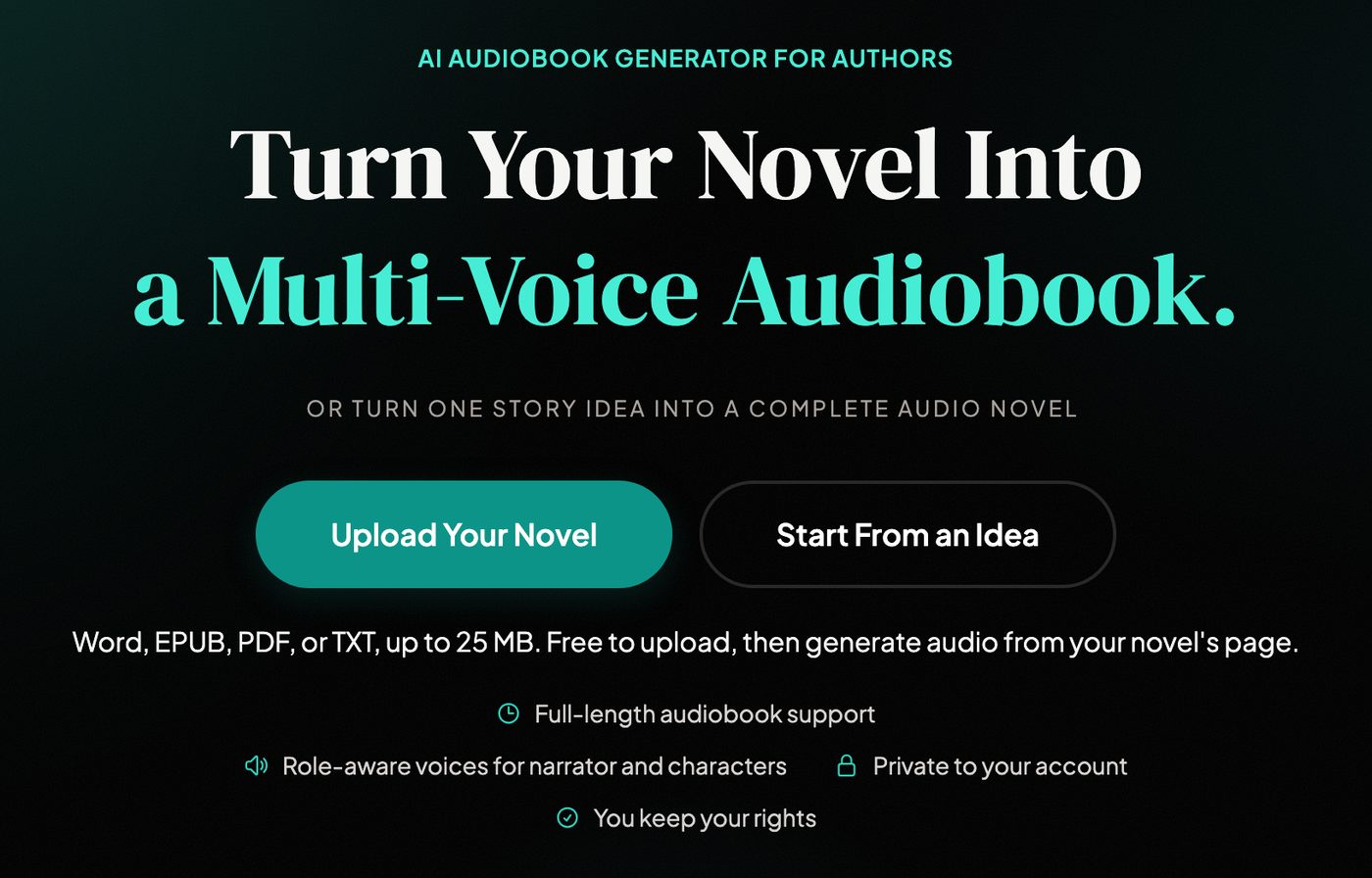
Yes, you can go straight from Word to audiobook. NovelHive's Word import reads a .docx or .doc of up to 25 MB, finds the chapters and the characters, and gives each main character their own voice without changing your text. A narrator reads the rest. There's no export to EPUB and no PDF detour.
That's new. Our own step-by-step manuscript-to-audiobook guide used to tell you to convert DOCX files first. You don't need to any more: Word uploads reached the web on September 11, 2026, and the iPhone app a day later.
Amazon's and Apple's own narration tools can't help with a draft. Both of them start from an ebook that's already published.
As of September 2026, KDP's audiobooks with Virtual Voice is an invite-only beta for eligible KDP eBooks, and it's only for books sold in the US marketplace. Apple's digital narration needs an English-language ebook that's already for sale on Apple Books. The request goes through one of Apple's approved partners, and Apple says production takes about one to two months once it's submitted.
NovelHive works on the manuscript you have today, and it casts your characters instead of handing the whole book to one voice. When you're ready to think about money and stores, here's what recording your audiobook costs and where you can sell it.
What you can upload, at a glance
The short answer: Word, EPUB, PDF or TXT, up to 25 MB, as long as there's real text inside.
| Format | Works when | Watch out for |
|---|---|---|
| Word (.docx or .doc) | It's unlocked and has selectable text | Save files older than Word 97 as .docx first |
| EPUB | Chapters are real text | Its table of contents sets the chapters |
| It has an embedded text layer | Scans have no text, and there's no OCR | |
| TXT | It's saved as UTF-8 | Word's default .txt setting garbles curly quotes |
In a Word file, macros never run, and scanned images inside it don't turn into text.
A few limits apply to every upload:
- 25 MB per file.
- About a million words per book. We check the length right after reading the file, before any AI step runs.
- One import at a time per account.
- A verified email address.
- A tick confirming you own the book or have permission to upload it.
Imported books stay private to your account, and they can't be published on NovelHive.
Uploading, reading and casting cost nothing. The price only applies when you record, and you can see what your book costs before you do.
Upload a Word manuscript on the web
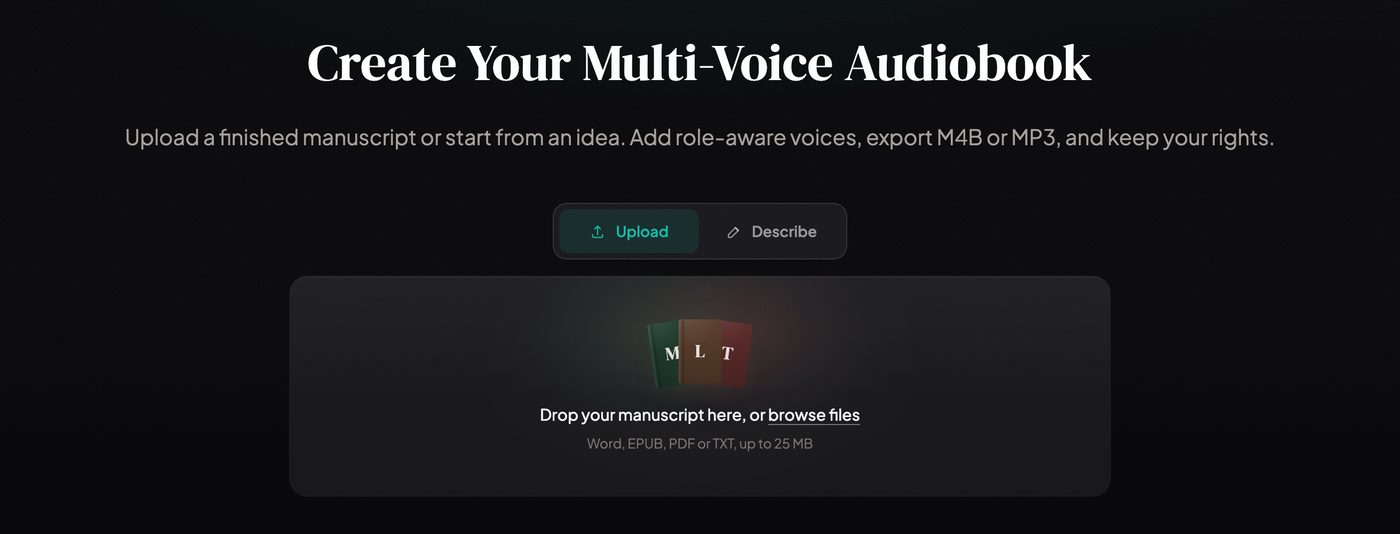
The app opens on Upload, so there's nothing to hunt for. Go to upload your manuscript, drop the file on the page or browse for it, tick the box that says you own the book or have permission, and press "Import this novel".
A progress rail then walks through six steps:
- Uploaded
- Reading the file
- Finding chapters
- Finding characters
- Your review
- Saving to your library
You don't have to sit and watch. Leave if you like, and pick it up again in your Generations.
When the book's saved, we email you "Your manuscript is ready" with an "Open Manuscript" button.
Upload from your iPhone
The iPhone app has taken manuscripts since version 1.3.0, released September 8, 2026. You pick an EPUB, PDF or TXT on the Home tab, check the cast, and create the audiobook in one step.
Version 1.3.1, out September 12, adds Word. Pick a .docx or .doc in the app, or send it over with "Open in NovelHive" from Files or Mail. A locked or scanned Word file now says so plainly, instead of failing late.
Three things are different on the phone:
- The Home composer opens on Describe, which is for starting from an idea. Switch it to Upload, or use "Open in NovelHive", which switches it for you.
- The review screen adds a language picker, and it's blunt about an empty cast: "With no characters, one narrator reads everything. You cannot add character voices later."
- The app streams the finished audiobook, but M4B and MP3 downloads happen on the web.
As on the web, an import keeps going if you leave the screen, and it waits for you in Generations.
Format your manuscript so it imports cleanly
Most import trouble comes down to chapter headings, so start there.
- Put each chapter heading on its own line. "Chapter 1", "Chapter One: The Crossing" and "Part II" all work, and so do Prologue, Epilogue, Interlude or a bare roman numeral like "IV".
- Upload the whole book. If the importer finds only one chapter in a long text, it refuses the file with "We couldn't detect any chapters in this file."
- Take off any password, and save a very old .doc as .docx.
- If you've only got a PDF, export it from your writing app. A scan is a picture of text, and we don't run OCR on it.
- Keep character names consistent. If she's "Elizabeth" in chapter one and "Lizzie" by chapter nine, you can add "Also called" names at review.
- Split an omnibus. Anything over about a million words has to go in as separate volumes.
For the cleanest chapter split, the order of preference is an EPUB with a real table of contents, then .docx or TXT, then PDF. An EPUB's table of contents is used as it is. Everything else gets split by finding your headings.
A contents page at the front of the book is stripped out, so nobody sits through forty chapter titles before the story starts.
A heading with no text under it is skipped, and a warning names it. That's usually an image-only section. It can also be a "Part II" line followed straight by "Chapter 7", so if a Part title turns up in that warning, none of your story is missing.
What happens to your words, and what doesn't
We don't rewrite your book. These are the five steps between your file and your review, in order.
- Reading. Text is pulled from your file on our servers with no AI involved. Word files are opened in a separate, isolated process.
- Chapters. An EPUB's table of contents is used as is. Otherwise, local rules find likely headings and a model only votes on them. Every break is a position in your own text, so there's nothing for the model to rewrite.
- PDF cleanup. Running headers, footers and page numbers come out by fixed, traceable rules, and sentences broken across pages are joined back up.
- Characters. The cast list is built only from names backed by a quote we can find, word for word, in your text.
- Who says what. AI decides who says each line. It maps passages to speakers and can't add, drop or change a word. Since September 11, its call wins over our rule-based guesses from punctuation. A line that can't be matched to someone in your cast goes to the narrator.
Some things are drafted for you, though. Whatever your file doesn't tell us, AI fills in: usually the title, author and summary, plus a short description, age group and voice tone for each character. You can change every one of them at review.
The cover's new too, made from the book details you confirm. If your EPUB has its own cover, we don't use it. None of this touches your chapters.
Review your book before anything is saved
When the importer's finished reading, it stops and waits for you.
You can fix the title, author and summary. The cast holds up to 200 characters: add, remove or merge them, add "Also called" names, and set each one's role, gender, age group and voice tone. The form puts it simply: "Each gets their own voice. The narrator reads the rest."
For a child character, set the age group to "Child" so the children's voices open up for that role. The picker itself is covered in choose each character's voice. And if you'd rather not have a cast at all, remove every character and "One narrator reads the whole book."
Chapters are shown so you can check them, with a glimpse of how each one starts and ends, but you can't rename or re-split them here. If a split looks wrong, fix the headings in your file and upload it again.
The narration price sits at the top of the same screen. Open "How we count" under it for the arithmetic and the line "Nothing is charged until you record it." When you're ready to record, the confirm dialog shows the price once more. That's the most you'll pay, and its receipt says so: "Never more than this."
The screen is plain about time, too: "Kept for 3 hours. Nothing is saved until you continue." After that the file is removed, and you'd need to upload it again.
If character detection fails outright, the book still imports. You'll get single-voice audio and a warning that says so.
When a file won't read: what each message means
Most messages say what went wrong, and the fix is usually one line.
| You see | Usually means | Fix |
|---|---|---|
| "We couldn't read this Word document." | Locked, pre-Word 97 or scanned | Remove the password, save as .docx, or save UTF-8 TXT |
| "This PDF is password-protected." | The PDF is locked | Remove the password and upload again |
| "We couldn't read enough text from this PDF." | Scanned pages | Upload a text-based PDF, an EPUB or a TXT |
| "We couldn't detect any chapters in this file." | No headings found, or one long chapter | Headings on their own lines, whole book |
| "This file is about N words" | Over about a million words | Split it into volumes |
| "This file is N MB and the limit is 25 MB." | The file's too big | Compress the PDF or split the novel |
| "This import timed out after waiting 3 hours" | The review wasn't confirmed | Upload the file again |

The full Word message is "We couldn't read this Word document. Upload an unlocked .docx or .doc containing text, or export it as TXT and try again."
That last option is a good fallback, as long as you save it the right way. In Word, choose Save As and pick Plain Text (.txt). When Word asks about encoding, choose Other encoding, then Unicode (UTF-8).
Don't skip that step. Word's default plain-text setting turns curly quotes and apostrophes into junk characters, and then we can't tell dialogue from narration. You'd get a book that imports but has lost its character voices.
In UTF-8 you'll lose your bold and italics, and that's about it. The importer reads Word files as plain text anyway. Just keep each chapter heading on its own line.
Frequently asked questions
Can I upload a Word document directly?
Yes. NovelHive accepts .docx and .doc files up to 25 MB on the web, and in the iPhone app from version 1.3.1. The file has to be unlocked and contain selectable text. There's no need to convert it to EPUB or PDF first, and uploading, reading the file and casting the voices are free.
Why couldn't NovelHive read my Word file?
Usually it's password-protected, saved in a format older than Word 97, or made of scanned page images, which have no text to read. Remove the password or save it as .docx and try again. If it still fails, save a copy from Word as plain text with UTF-8 encoding and upload that instead.
Can I upload a single chapter to try it?
No. The importer needs a multi-chapter book with clear chapter headings, and a single long chapter is refused. To hear the voices first, play any of the 86 on the NovelHive home page, no account needed. Then upload the whole manuscript when you're ready, and you'll see the price before you record.
Does NovelHive change my text?
No. Chapter breaks are positions in your own text, PDF cleanup follows fixed rules, and inside your chapters AI only decides who says each line. It can't add, drop or change a word. Outside them, AI drafts the title, summary and character notes for you to edit, and it makes the cover.
Can I make an audiobook from my iPhone?
Yes. Update to NovelHive 1.3.1, switch the Home tab to Upload and pick the file, or use "Open in NovelHive" from Files or Mail. You review the cast and create the audiobook in the app, and it streams there once it's done. Downloading M4B or MP3 files happens on the web.
Before you upload
Open the .docx and check two things: every chapter heading sits on its own line, and there's no password. That's most of the work of going from Word to audiobook.
Then upload your manuscript, look over the cast at review, and check the price before you record.

NovelHive AI Team
Practical audiobook creation, narration, editing, and publishing guidance